Authentication & Account Setup
Getting Access to SprintUp education Curriculum Design Workspace
Learn how to create your organization account and sign in to SprintUp education Curriculum Design workspace.
Creating Your Organization Account
Step 1: Start the Registration Process
- Go to the SprintUp education Sign Up page .
- Click on the “Curriculum Designer” tab.
- Choose “Create a new organization” or “Join an existing organization” based on your situation.
- Fill in your organization and personal details.
Step 2: Provide Organization Information
Organization Name:
- Use your school, district, or institution name
- This will be your primary workspace name
- Example: “Lincoln High School” or “Springfield School District”
Administrator Details:
- Your full name as the account administrator
- Your professional email address
- A secret upassword (at least 8 characters)
As the first person from your organization to sign up, you’ll automatically become the Organization Administrator with full management privileges.
Step 3: Verify Your Email
After registration, you’ll receive a verification email:
- Check your inbox for an email from SprintUp education
- Click the verification link in the email
- You’ll be automatically logged in to your new workspace
You must verify your email before you can sign in. Check your spam folder if you don’t see the verification email within 5 minutes.
Signing In to Your Account
Regular Sign In
- Go to the SprintUp education login page
- Enter your email address and password
- Click “Sign In”
- You’ll be directed to your curriculum dashboard
Multiple Organizations
If you belong to multiple organizations (like both a school and a district account):
- After signing in, you’ll see a list of available organizations
- Select the organization you want to work in
- Your choice will be remembered for future sessions
You can switch between organizations at any time by clicking your profile menu in the top right corner.
Account Types & Permissions
Organization Administrator
- Full system access and management capabilities
- Can invite team members and manage permissions
- Controls organization settings and billing
- Creates, edits, and publishes organization products
- Typically: Curriculum directors, department heads, IT administrators
Curriculum Designer
- Create and edit activities and syllabi
- Build comprehensive course materials
- Collaborate with other team members
- Access all curriculum design features
- Typically: Instructional designers, lead teachers, content creators
Team members are added through the Settings dashboard after the organization is created. The first registrant automatically becomes the Organization Administrator.
Troubleshooting Login Issues
Common Problems & Solutions
“Invalid credentials” error:
- Double-check your email spelling
- Ensure Caps Lock is off
- Try the “Forgot Password” option if available
“Email not verified” error:
- Check your email for the verification link
- Request a new verification email if needed
- Contact support if issues persist
Can’t see expected organizations:
- You may be signed in with the wrong email
- Contact your organization administrator for invitation
- Check that you’ve verified your email address
Password requirements:
- At least 8 characters long
- No specific character requirements
- Consider using a password manager for security
Security Best Practices
Account Security
- Use a unique password for SprintUp
- Don’t share your login credentials
- Log out when using shared computers
- Keep your email account secure
Organization Management
- Only invite trusted team members
- Assign appropriate permission levels (Admin vs Curriculum Designer)
- Regularly review team member access
- Contact support for suspicious activity
Getting Help
Support Resources
- Email verification issues: Check spam folder first, then contact support
- Organization access: Speak to your institution’s SprintUp educationadministrator
- Technical problems: Use the help chat or email support@sprintup.com
Quick Tips
- Bookmark the login page for easy access
- Use password managers to save time and improve security
- Keep your email updated in your profile settings
- Log out properly when finished working
Never share your password with anyone. SprintUp educationstaff will never ask for your password. Contact support immediately if you suspect unauthorized account access.
Next Steps After Signing In
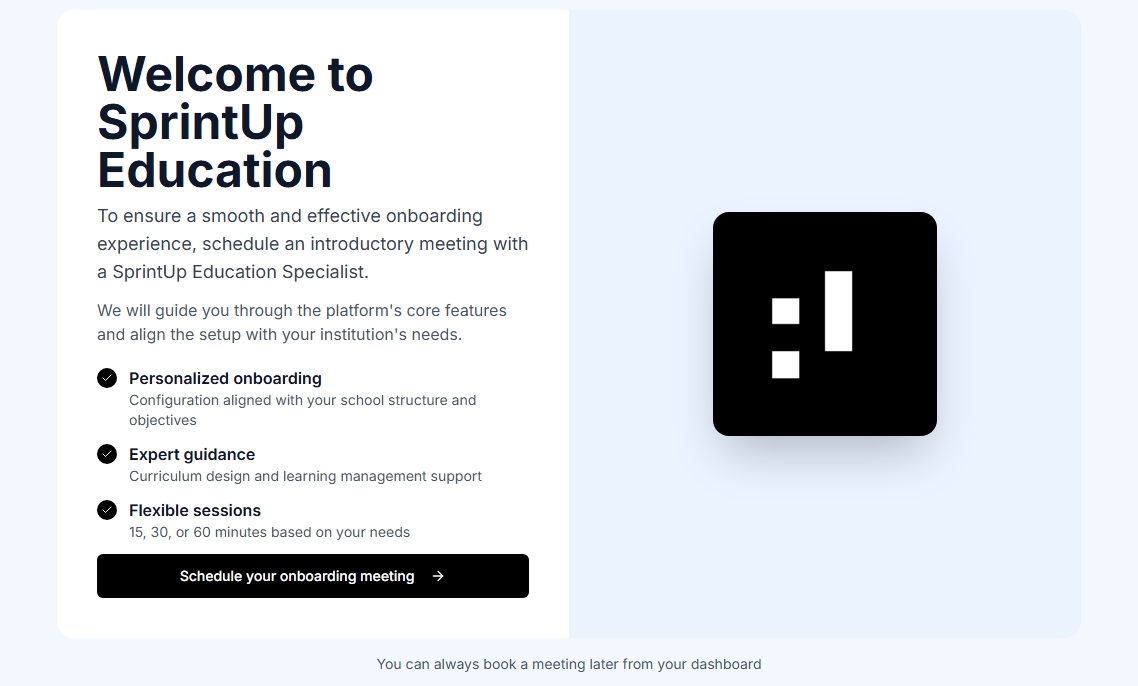
Once you’re successfully authenticated:
- Review the onboarding welcome page shown right after login
- Click “Schedule your onboarding meeting”
- Choose an available time slot to meet with an administrator
- Confirm the meeting details and continue to your dashboard
You can skip the meeting if needed and book it later from your dashboard.
Welcome to SprintUp education Curriculum Design! 🎉